
Essential Tips for Building Successful Landing Pages [Part Two]
2 December, 2017
5 Steps to Start Selling Online and Promote Your Website
2 December, 2017
I’ve received many questions from bloggers experiencing problems when sharing their posts on Facebook, following my article explaining the basics of
working with images on websites. These issues are related to post images not appearing after the posts are shared on Facebook after the blogger writes
A new post on their website is shared on their Facebook page, and that’s when problems start to appear. Sometimes the wrong image shows up, while other times…
Sometimes the wrong image appears, or the image looks very poor; other times, no image appears at all. In this article, I’ll walk you through some ways to troubleshoot these issues.
…to help you troubleshoot image issues when sharing your posts on Facebook. I hope you find it useful if you run into problems like these.
إذا واجهتك .
.
Why post images appear incorrectly on Facebook
As the saying goes, “Once you know the reason, there’s no more mystery.” Image issues when sharing posts can have many different causes, but 95%
of these issues can be traced to three main causes:
- Facebook can’t find the image associated with the post.
- The image being used is too small.
- Facebook has an older version of your post stored, so it shares the old image instead of the updated one.
Of course, you may be wondering about the remaining 5%. Well, it’s not possible to account for every issue, but most likely, if the three causes above don’t apply
The reason is an issue with the page’s code.
.
Solution 1: Use Facebook’s Debugger tool
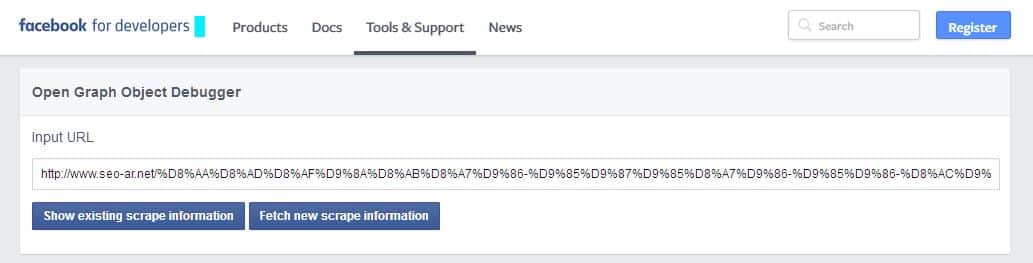
The first thing you should try is checking your page with the debugging tool provided by Facebook. This tool lets you see how
Facebook views the page on your website when you share it. Just enter the link to the article you want to share, then click
زر Debug :
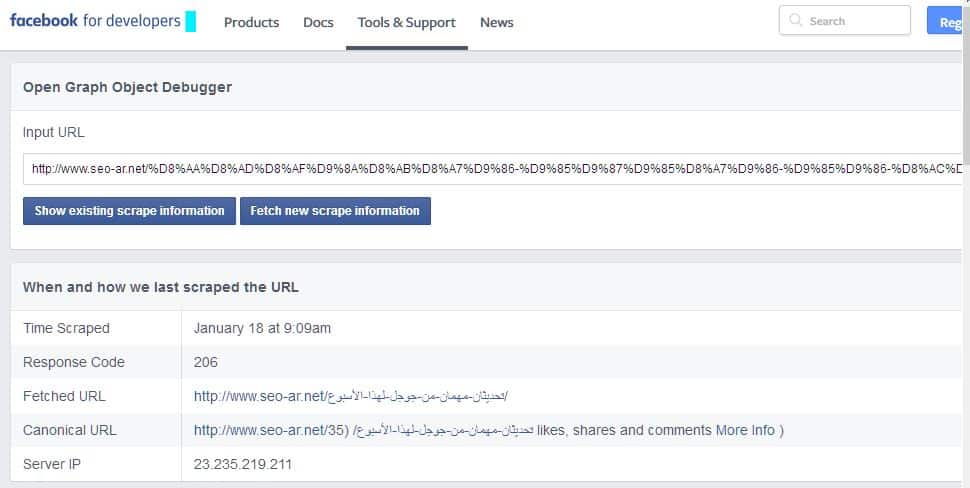
Once the results appear, look for the section labeled “og:image.” The correct result is to see an image that matches the article. If you see an
incorrect image or no image at all, click the “Fetch new scrape information” button to make Google update the old information
it has stored about your article.
Solution 2: Check the image size used in your article
There are standard sizes for images used in articles. Facebook has set these sizes for bloggers, and failing to follow them
will cause Facebook not to display the image. These are the sizes:
- Recommended size: 1200 × 630 pixels. Using this size ensures the image is displayed in high resolution across different types of devices.
- The minimum size for displaying the image large in a post is 600 × 315 pixels:
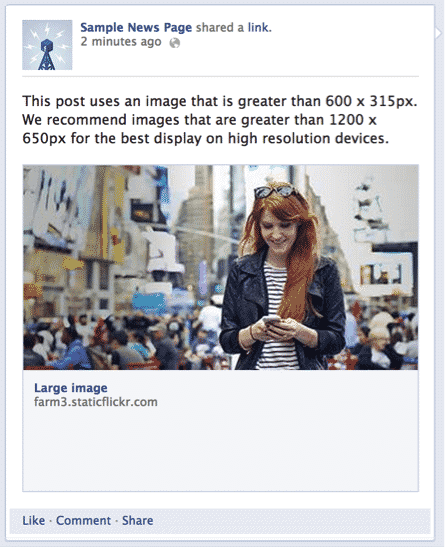
- If the image is smaller than 315 × 600 pixels, it will be displayed at a smaller size:
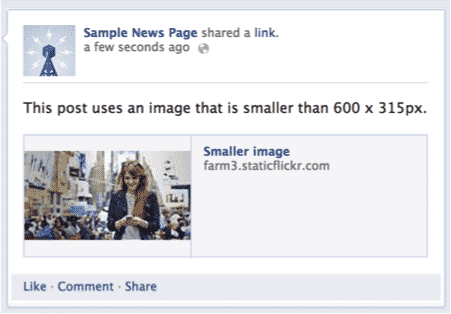
- If the image is smaller than 200 × 200 pixels, it will not appear on Facebook at all.
The Aspect Ratio should be 1.91:1 to display the full image.
.
Solution 3: Manually tell Facebook which image to use for the post
If the first and second solutions don’t work, manually tell Facebook where the image is by adding the following code to your article page:
<meta property=”og:image” content=”http://yourdomain.com/img/your-image.jpg” />
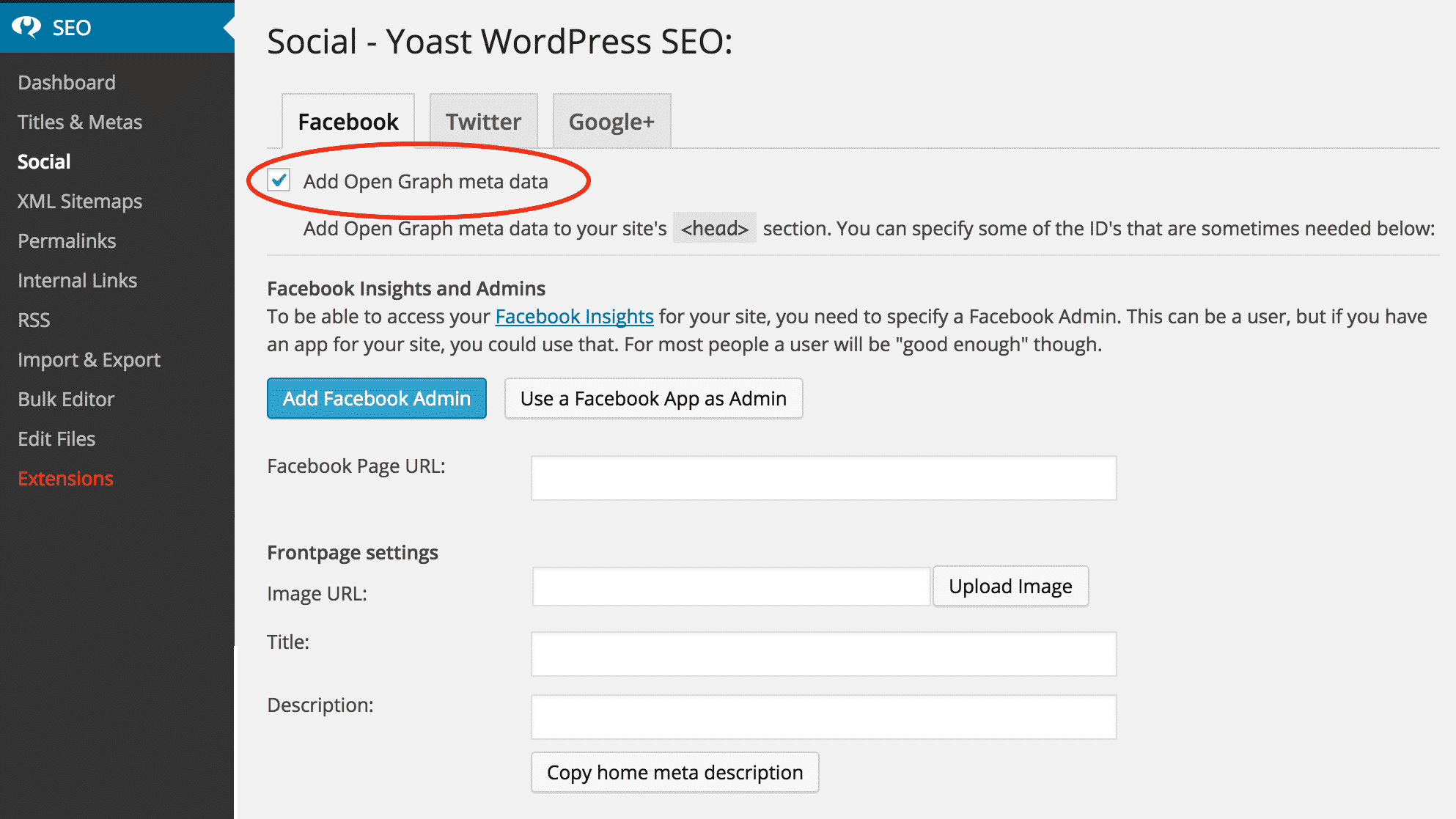
و ذلك ضمن وسم ال Head ، في حال كنت تستخدم الوورد برس يمكنك إضافة هذا الكود من خلال إضافة الـ Yoast كما في الصورة أدناه :